How to change the viewport background color in Houdini.
Three ways: the Display Options menu, a custom color file, or one click with a free Houdini Digital Asset (HDA).
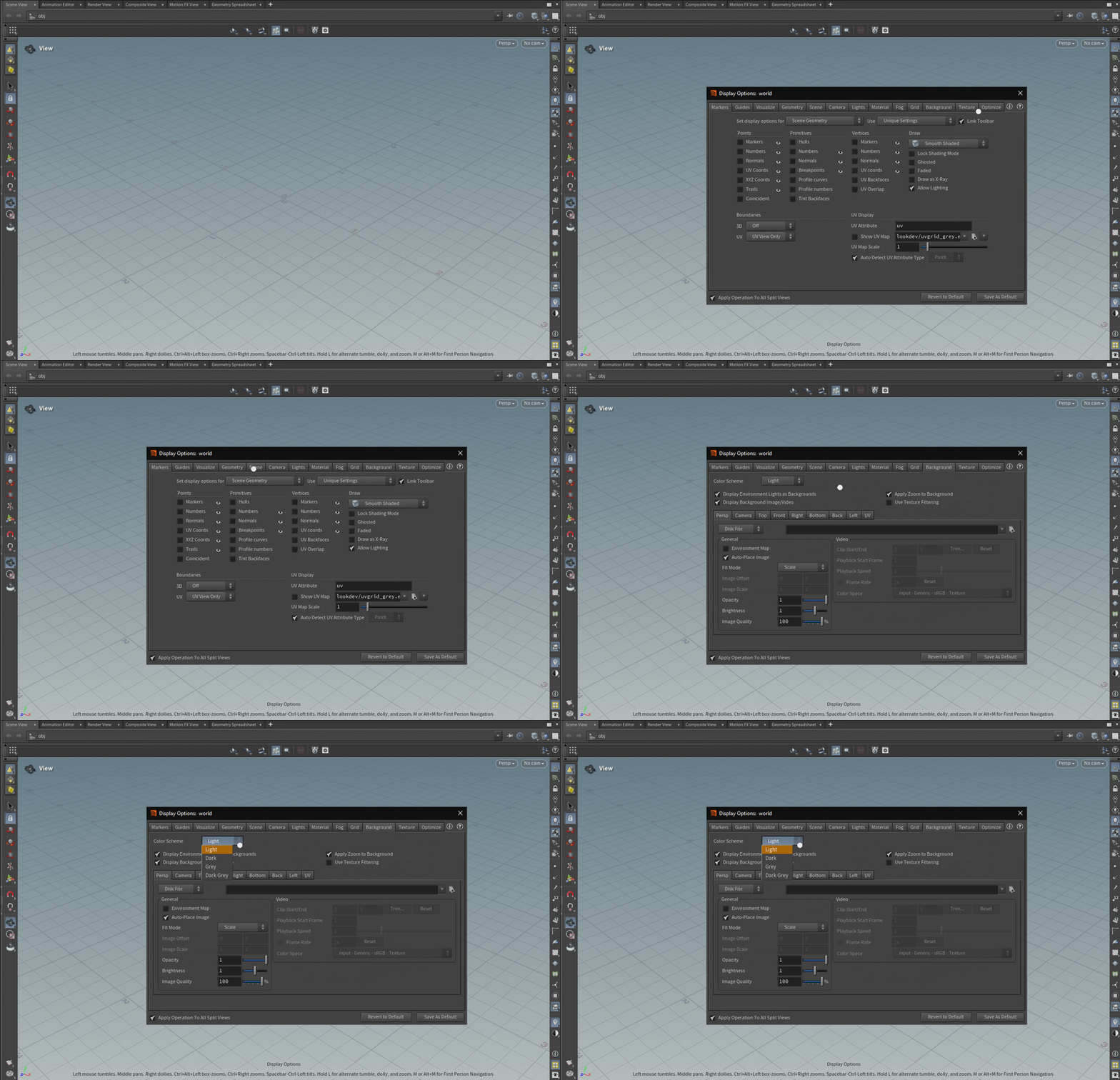
Short answer: hover over the viewport, press D to open Display Options, go to the Background tab, and pick a preset in Color Scheme (Light, Dark, Grey and others, depending on your Houdini version).
Change it in Display Options
- Hover over the Scene View and press D. You can also click the Display Options button in the display toolbar, on the right side of the viewport.
- Open the Background tab.
- Choose a preset in the Color Scheme menu. The viewport updates right away.
- To keep it for every session, click Save as Default.
Use a custom color
The menu has presets only, with no color picker. For your own color, override the preset's color file:
- In your Houdini install, open
$HFS/houdini/configand find the3DSceneColorsfiles, one per preset (for example3DSceneColors.dark). - Copy the one you use into the
configfolder of your Houdini user directory, for exampleDocuments/houdini20.5/config. Create the folder if it doesn't exist. - Edit the background color values in the copy, save, and restart Houdini, or switch to another preset and back.
Your copy overrides the installed file. For a picture instead of a color, turn on Display Background Image in the same Background tab.
Switch it with Python
The color scheme is also available from Python, for a shelf tool or a startup script:
import hou

viewer = hou.ui.paneTabOfType(hou.paneTabType.SceneViewer)
for viewport in viewer.viewports():
    viewport.settings().setColorScheme(hou.viewportColorScheme.Dark)
Or switch it in one click
Switch Background adds a button to the Houdini viewport. Click to change the background in every viewport at once. Shift+click to open the menu: pick a preset, or set your own color, flat or as a top-to-bottom gradient. Your last custom backgrounds stay in the menu, one click to reapply, and the button loads with every session.
No Display Options. No config files.
 Get Switch Background